Ddolbeng Picture Stories
Put your friends in, and make a story of your own
What it is
- Pick a backdrop, put a friend in, and choose what they are doing and how they feel.
- Add things and a speech bubble, and a panel is done. Up to twenty panels in one comic.
- Drag the panels into a different order. First, next, then, last - the skeleton of a story.
- When it is finished, read it. That is the screen a child turns the tablet around with.
See all sixteen plays in one video
What a child learns
Nothing is tested and nothing is scored. The learning is in the materials.
- Words - 60 backdrops, 852 things, 20 friends. Everything a finger lands on has a name.
- Feelings - choosing a face is choosing a feeling: happy, sad, surprised, curious.
- Sequence - rearranging the panels is the practice. There is no wrong order.
- Saying and writing - a child who cannot spell yet taps in a phrase; one who can, types.
For parents
- There is no right answer. No blanks to fill, no score, no stars. What the child made is the answer.
- No nagging. No notifications and no streaks.
- No ads and no purchases. Nothing a child can press by mistake.
- No gallery of other children's work. There is no space here where children see each other.
- Everything stays on this device. Nothing is collected unless a grown-up links an account, which is theirs to choose.
- Settings sit behind a three-second press-and-hold.
What each screen is for
Written so you can read it aloud to your child if that helps.
Look at the ⚙ at the top right first. Everything a grown-up needs is behind it — language, sound, saving a picture, deleting a story, linking an account. It opens only after a three-second press-and-hold, so a child will not wander in.
The list
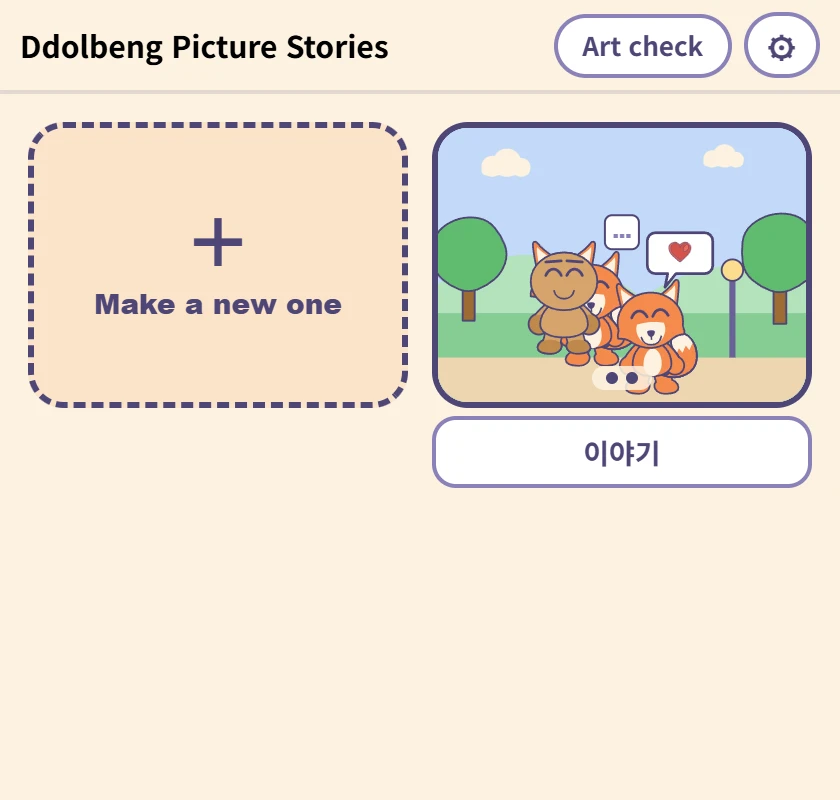
Where the stories a child has made live. The picture is the first panel, and the box underneath is the name — type in it and it saves, with nothing to press. It comes with a name already, for children who cannot write one yet.
Making a comic
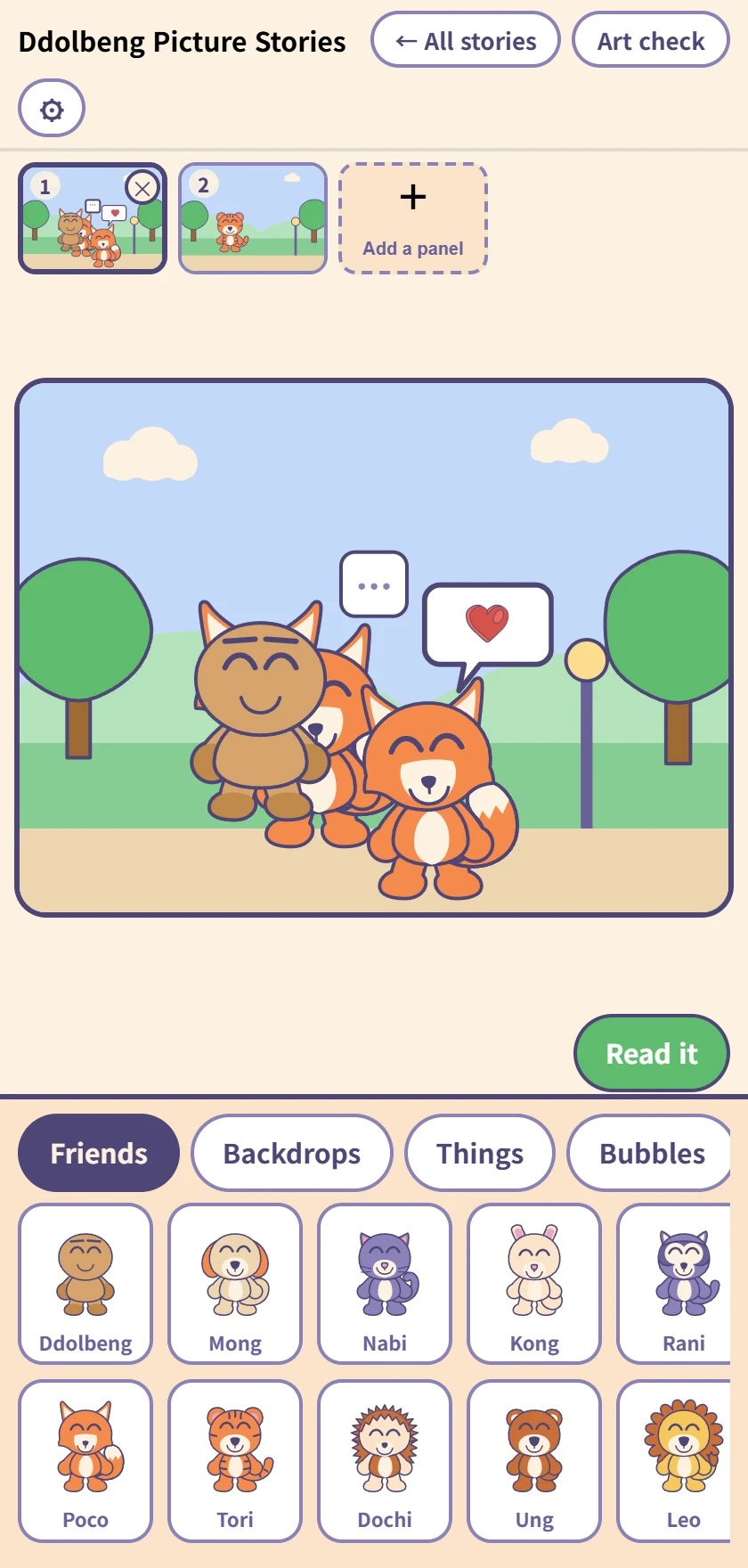
The row of panels at the top, the panel being worked on in the middle, and the drawer below. Tap a friend, backdrop, thing or bubble to put it in; once it is in, it drags.
Up to twenty panels, and dragging the little pictures at the top changes their order. Undo and redo reach everything.
Tapping a friend you placed
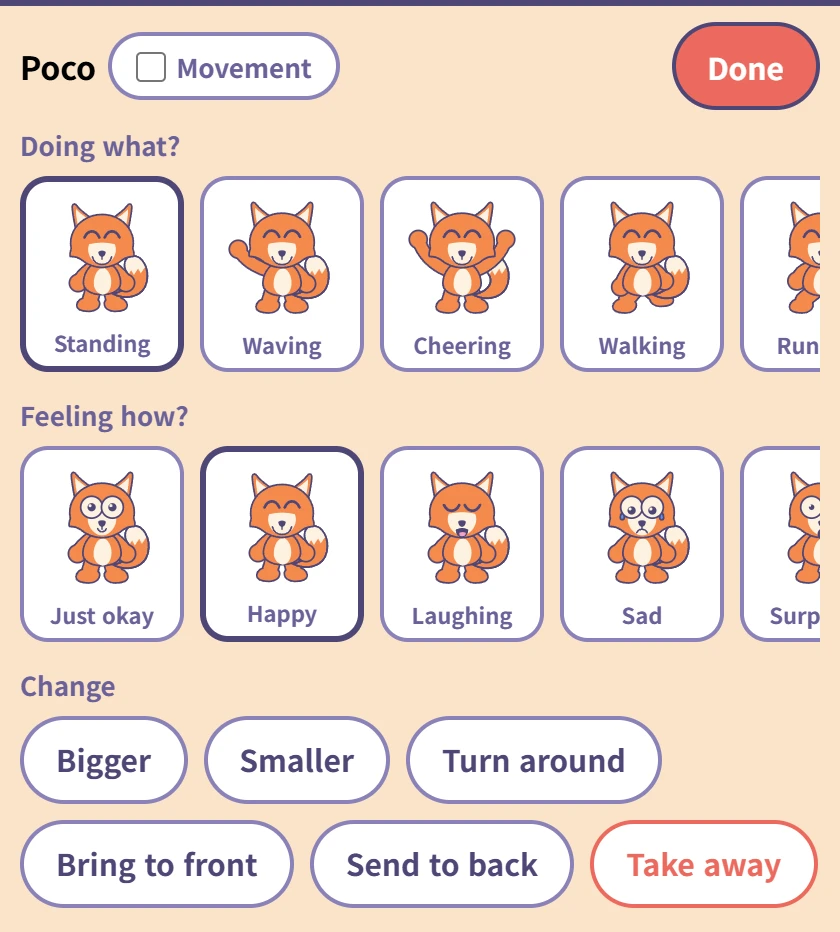
Choose what they are doing (ten poses) and how they feel (ten faces). Each one has its word underneath, so a child who cannot read yet still meets the word when you read it to them.
The Movement tick beside the name makes that friend move on screen — saved pictures always show them still. The red Done at the top right goes back to the drawer.
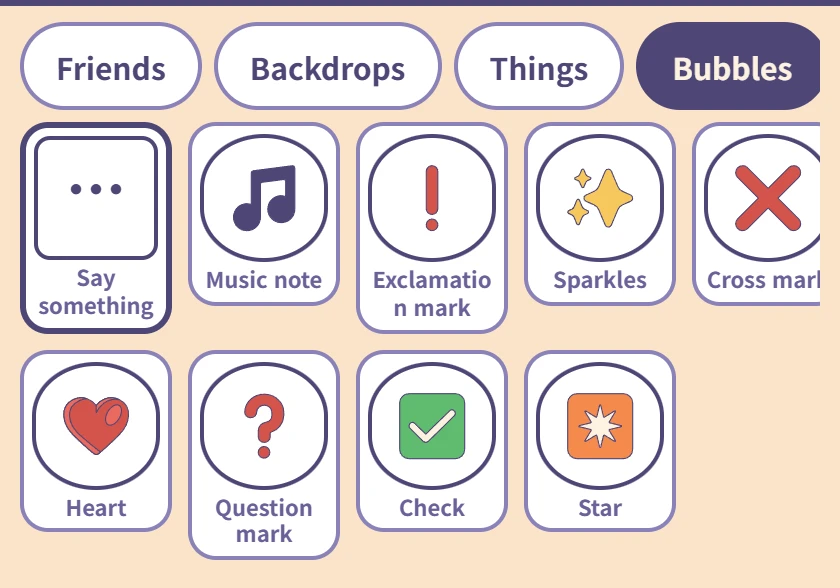
Bubbles
Only Say something, on the left, takes words. A child who cannot spell taps in Hi! · Thank you · Let's play; one who can, types.
The rest are picture bubbles — a heart, a music note, a question mark, and nothing to type.
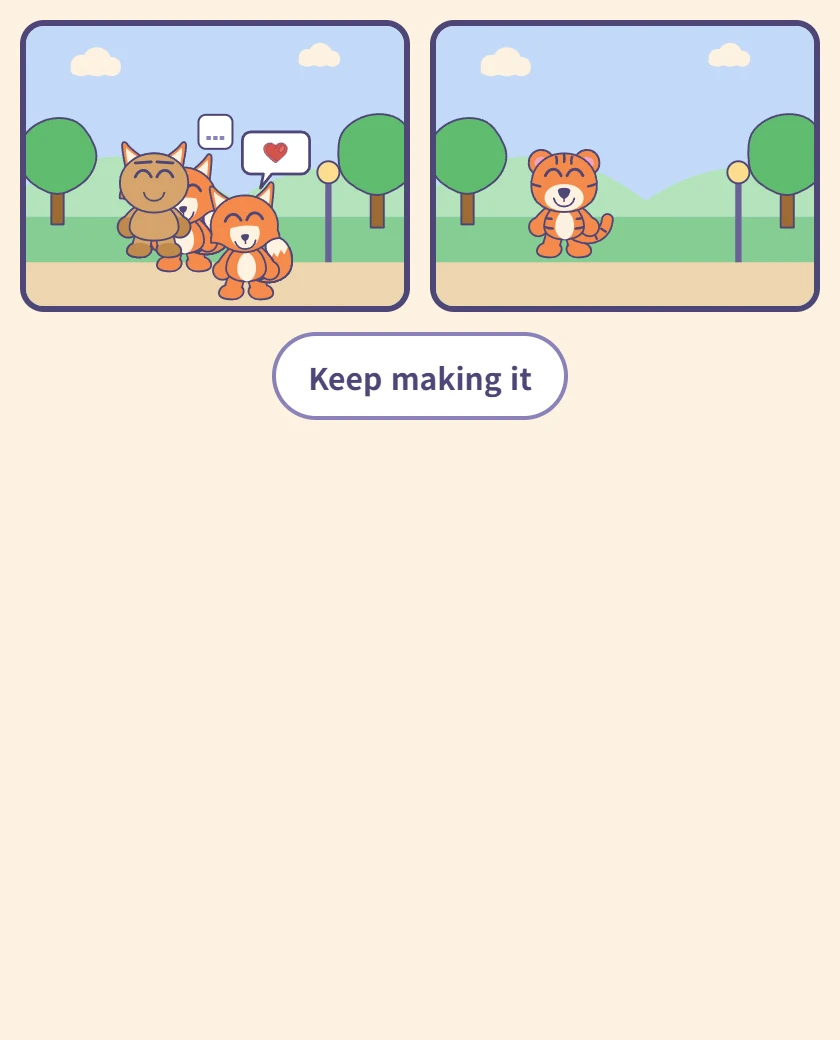
Reading it
The panels in order on one screen. This is the screen a child turns the tablet around with, so there is nothing else on it.
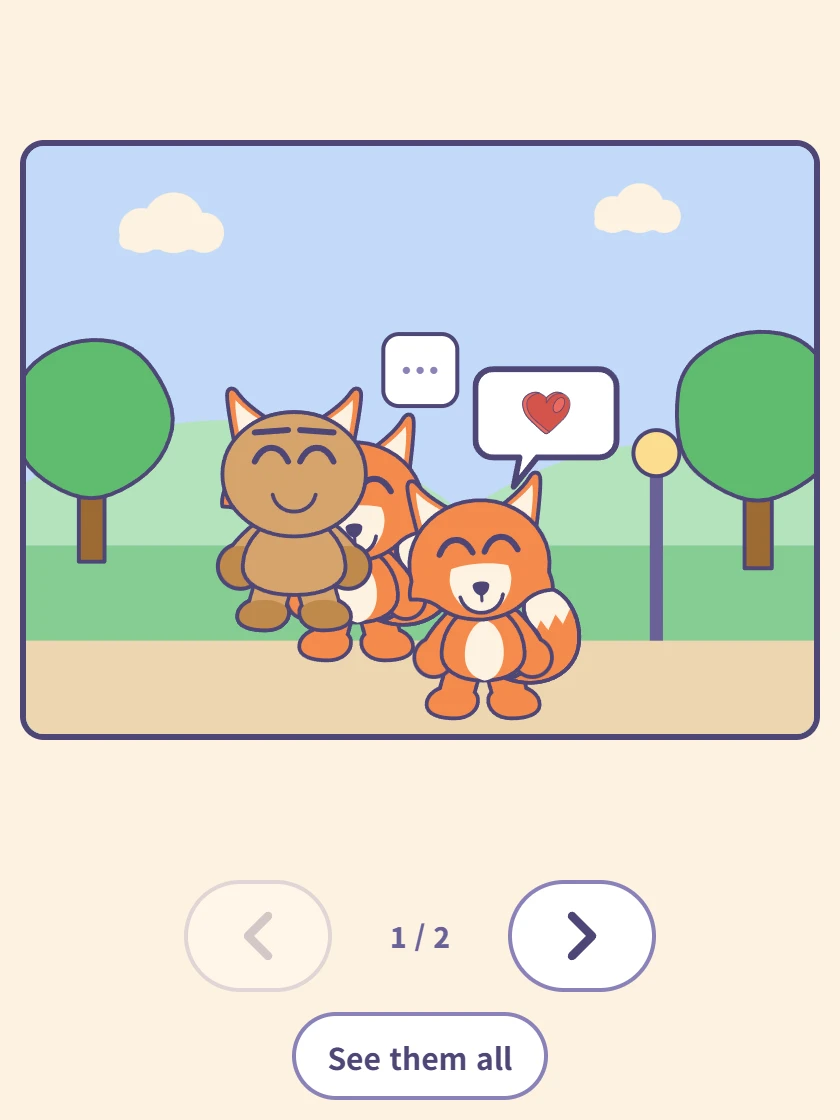
One panel at a time
Tap a panel and it fills the screen. The arrows underneath move forward and back, and the counter shows where you are.
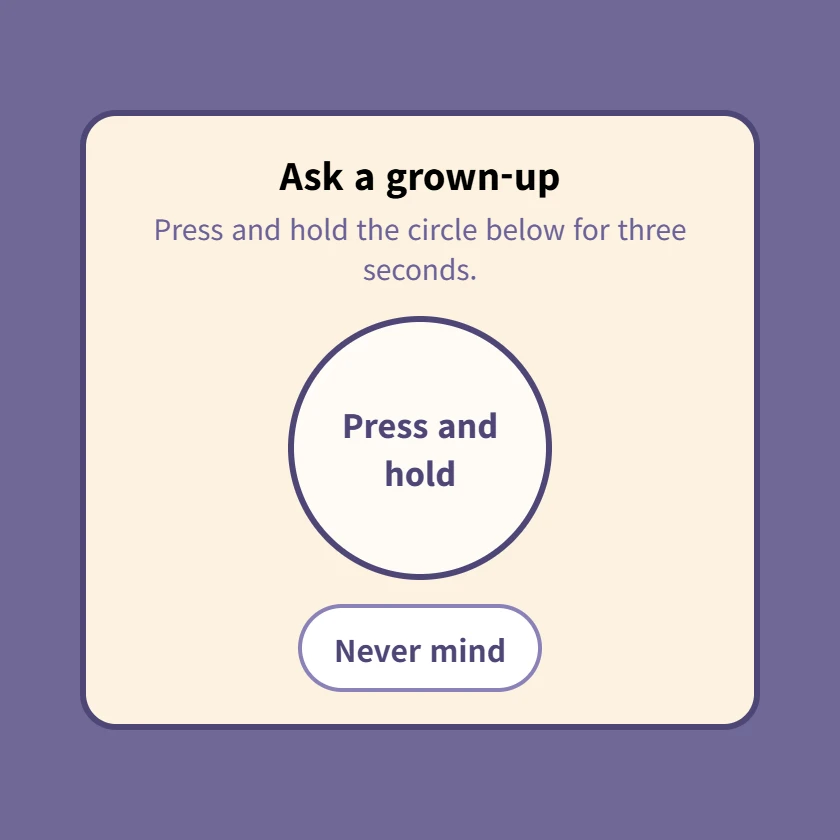
⚙ The grown-up check
Pressing ⚙ brings this up first. Hold the circle for three seconds; letting go starts it over. Settings and account linking are all behind it.
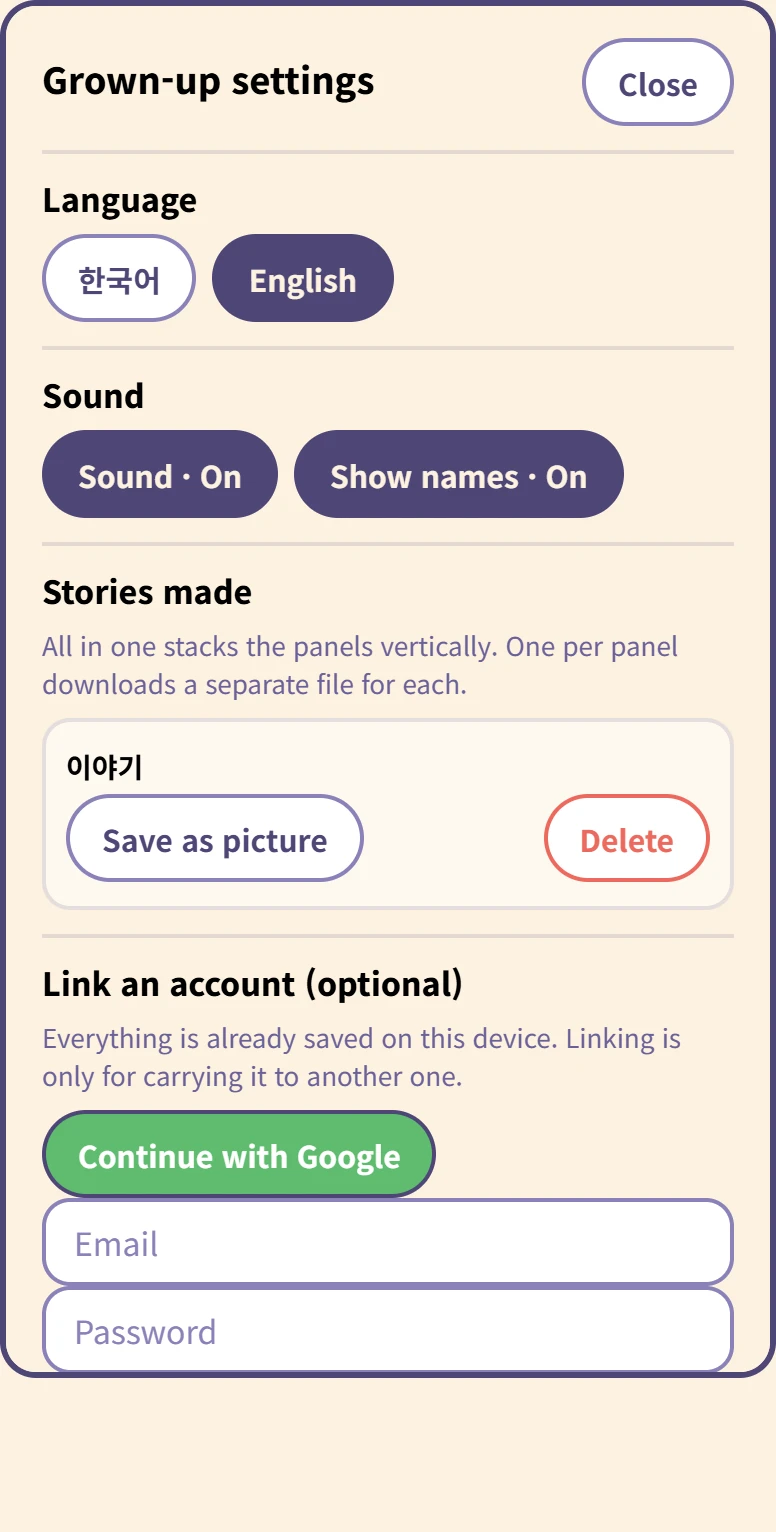
Inside the grown-up settings
Language and sound, and for each story Save as picture and Delete.
Saving asks whether you want all in one (panels stacked vertically) or one per panel. Deleting asks again, because it cannot be undone.
At the bottom, linking an account is optional. Everything is already on this device, and nothing uploads by itself.
How saving works
There is no save button. The comic is kept on this device as the child works, and it is still there when the tab is closed. A five-year-old will not press save, and a comic lost to a closed tab is a comic they made for nothing.
Linking an account is a separate thing - only for carrying comics to another device, and only when a grown-up presses it.
What you need
Nothing. It opens in a browser with no install and no sign-up.